



 0
0
Audience: Mac Users
Introduction
Macintosh computers are very popular computer options that have been widely used by our volunteers. Engage is compatible with Mac devices. We've added this guide to cover the best practices for Mac Users
Table of Contents
________________________________________________________________________________________________________
General Preferences Settings
In Engage, we have several pop-up windows in our processes that would show lists so, it's best to always turn on your scroll bar. To do so, please follow these steps:
- Click the Apple menu at the top-left of the screen, then select System Preferences
- Next, select the General
- Under the “Show scroll bars”, select Always
For more information on how to change your general preferences, please check out the information on Apple's Support site: Change General Preferences On Your Mac
Allow Pop-Up Window
Allow pop-ups from scoreengage.my.site.com and score.interactyx.com and mail.google.com
And set to Allow: the site can display pop-up window
In SCORE Online Learning
When accessing online learning from Engage, click anywhere on the page to play the training video if it does not auto-play.

Keyboard Shortcuts
Here are the popular keyboard shortcuts in Windows and their equivalent in Macs.
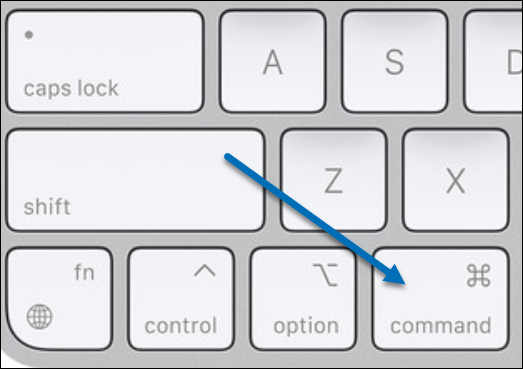 The command key is found on the left side of your keyboard.
| Shortcut in Mac | Shortcut in Windows | Description |
| Command-X | Ctrl-X | Cut the selected item and copy it to the Clipboard. |
| Command-C | Ctrl-C | Copy the selected item to the Clipboard. |
| Command-V | Ctrl-V | Paste the contents of the Clipboard into the current document or app. |
Command-click |
Ctrl-click | Select multiple items |
| Command-A | Ctrl-A | Select all items in a window |
For a full list of Keyboard Shortcuts, refer to Apple's Support site: Full Mac Keyboard Shortcuts
Windows Users Switching to Macs
Here is additional information for users who have switched to the Mac from a PC.
Right-click
These are the several ways to right-click using your mouse:
- Control-click: Press and hold the Control key while you click an item.
- Click the right corner of your Apple mouse, or click with two fingers on your Apple trackpad.
- You can change this in Mouse preferences and Trackpad preferences.
Change Mac settings
Looking for the Control Panel? Use System Preferences instead.
For more tips, please refer to Apple's Support site: Mac Tips for Windows Switchers

