


How to Create a Google Group Email

Feb 18, 2026
 0
0
All Chapters/Volunteers have the ability to create a Google Group via their @scorevolunteer.org email, all users assigned to the group will receive the same email notifications to the assigned group. Video Version is Below.
1. Sign in to your @scorevolunteer.org email via www.gmail.com
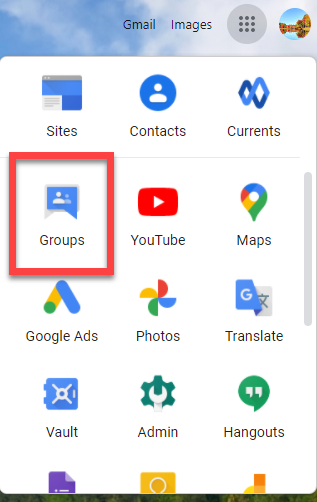
2. Near the top right, click Google Apps
3. Hit Groups
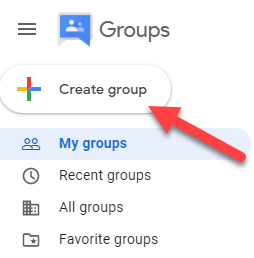
4. Click Create Group, on Group Homepage.
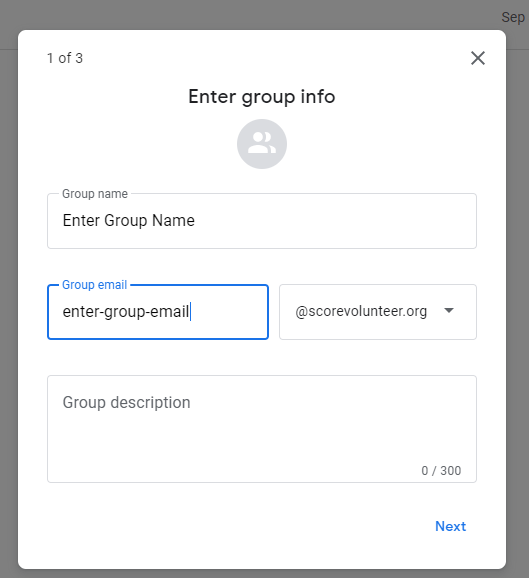
Enter Group Info (1 of 3)
Group Name, Group Email Address, and Group Description
Examples of Group Emails:
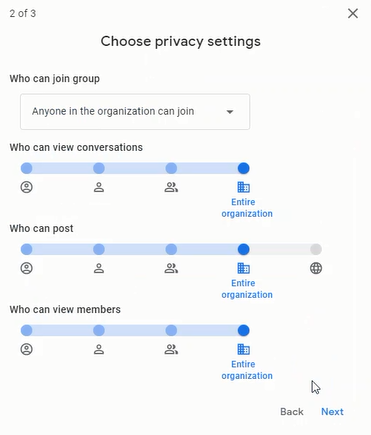
Privacy Settings (2 of 3)
In Privacy Settings, hit NEXT
Add Members (3 of 3)
In this Window, add the following to your group.
- Enter Group Members by their @scorevolunteer.org email, and/or full name to find
- Enter Group Manager
- Add a Group Owner
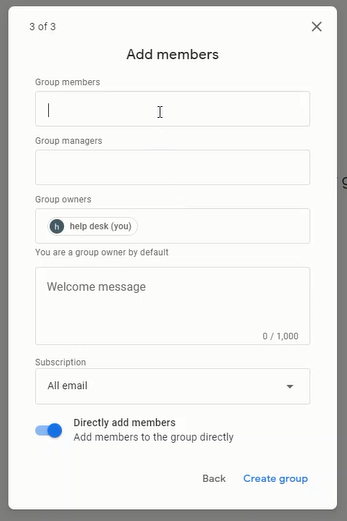
- Hit "Create group" once finished.
-
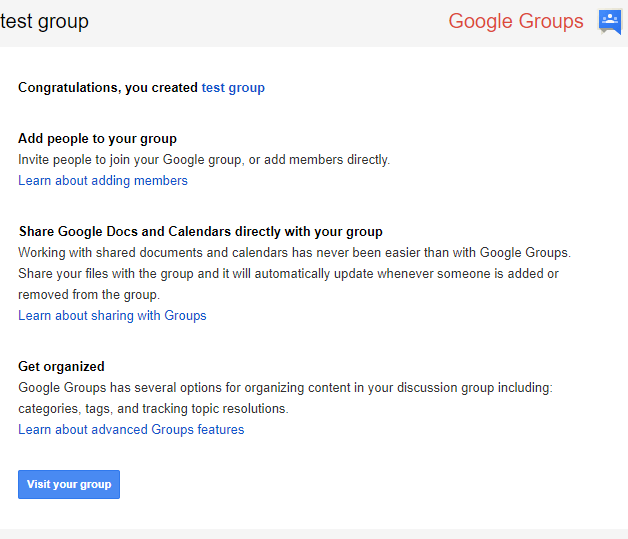
All members in group will receive a notification similar to below
Create a Group (Short Video Version)
Reference:

