



 1
1
Enable Less Secure Apps (Required)
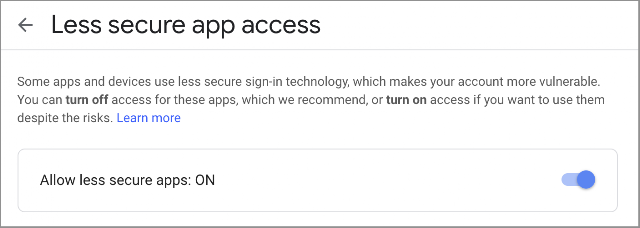
- Click this link myaccount.google.com/lesssecureapps and select "ON" to enable less secure apps while in Gmail.
- For previous versions, please click here.
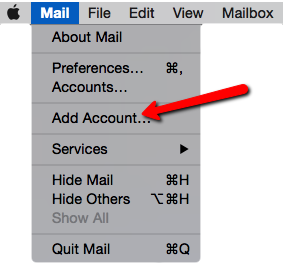
- Open the mail app and click Mail from the top menu.
- Click Add Account.
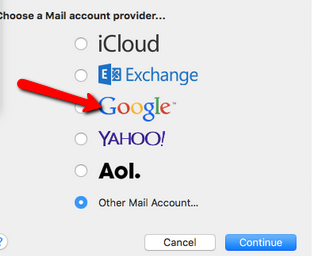
- Select Google on the next page.
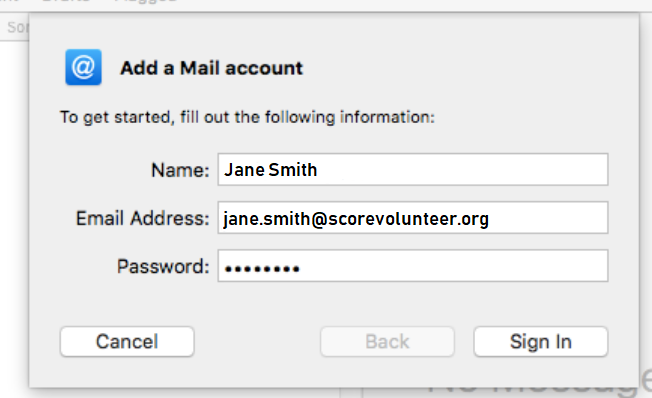
- Fill in your Name, SCORE Email address, and SCORE Email password. Click Sign In.
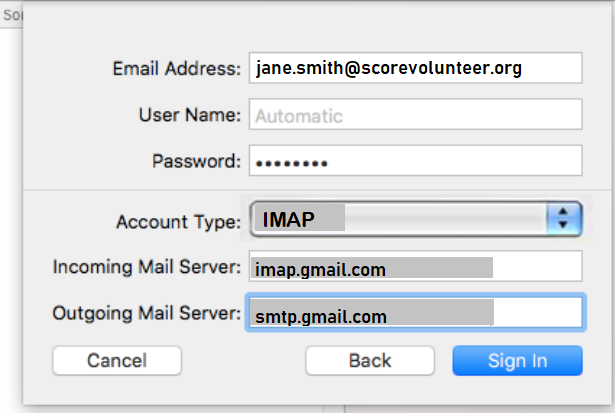
- If you get the message "Unable to verify account name or password", you should get the following additional fields
Email Address: SVO
User Name: Your full SCORE Email Address
Password: Your SCORE Email Password
Account Type: IMAP Incoming Mail Server: imap.gmail.com
Outgoing Mail Server: smtp.gmail.com
- After clicking Sign In, you will get another window asking you to "Select the apps you want to use with this account", select Mail.
- Click the Done button.
- Please don't forget to edit the Outgoing Mail Server so you can send out emails. Some users only stop at Step 7, please check out the rest of the steps below.
- From the Account Information page, go to the Outgoing Mail Server (SMTP) option and click the drop-down menu. Select Edit SMTP Server List.
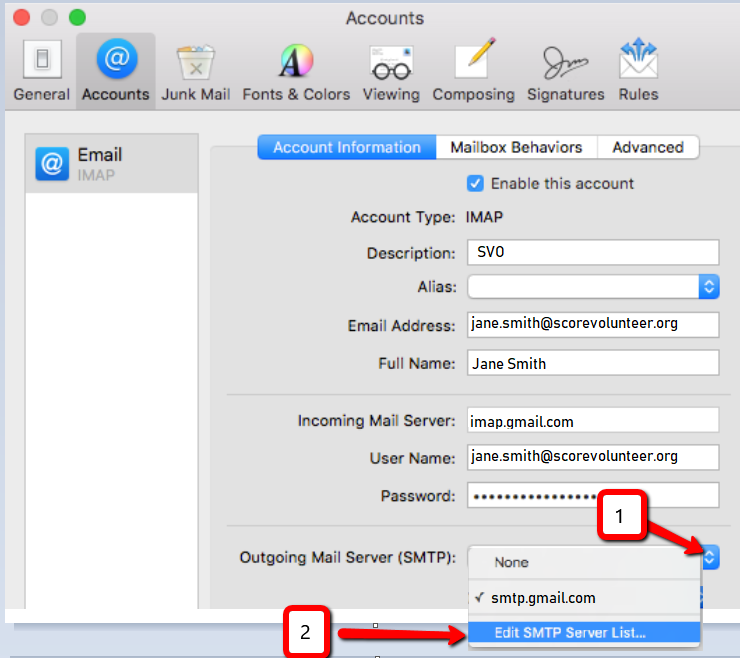
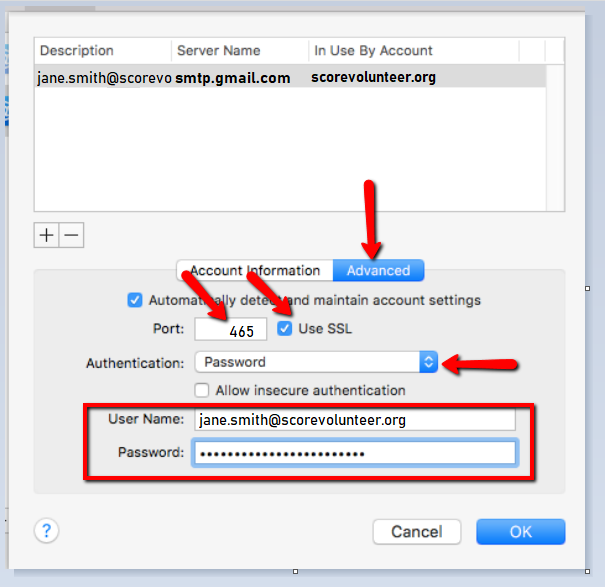
- Then click the Advanced tab and do the following changes.
Uncheck Automatically manage connection settings
Check Use SSL, Port 465
Authentication: Password
Username: Enter SCORE Email address
Password: Enter SCORE Email password
Click Ok
- Your email should download shortly, please wait up to 15 minutes for the messages to be downloaded.


