


Connect Your @scorevolunteer.org to your iPhone Mail Client

Feb 18, 2026
 1
1
Steps to add using Mail App on iPhone/iPad
If you are experiencing an incompatibility issue with the iPhone Mail Client (from steps below), please download the Gmail App from the App Store: SCORE Email account using the Gmail App.
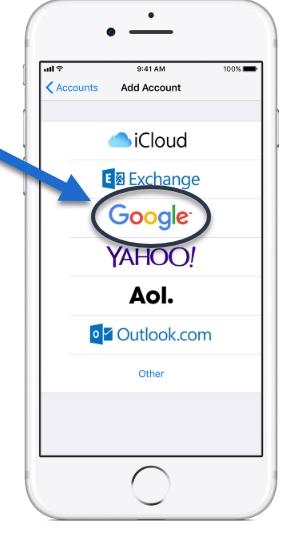
- Go to Settings
- Select Account & Passwords.
- Select Add Account
- Enter your ([email protected]) email and password for the email account.
- Tap Next and wait for Mail to verify your email account.
- Choose information from your email account, like Contacts or Calendars, that you'd like to see on your device.
- Tap Save.
- Your @scorevolunteer.org email account will now be synced to your device.
- Go to Mail App to view messages
Reference Apple Support: https://support.apple.com/en-us/HT201320

