0
0
Audience: Client Intake Coordinators, Mentors
The Engage system allows you to send an email to the client. This article covers the two primary ways to do so.
________________________________________________________________________________________________________
Send an Email from the Contact Record
1) Search Client in the global search bar on top of the Engage homepage.
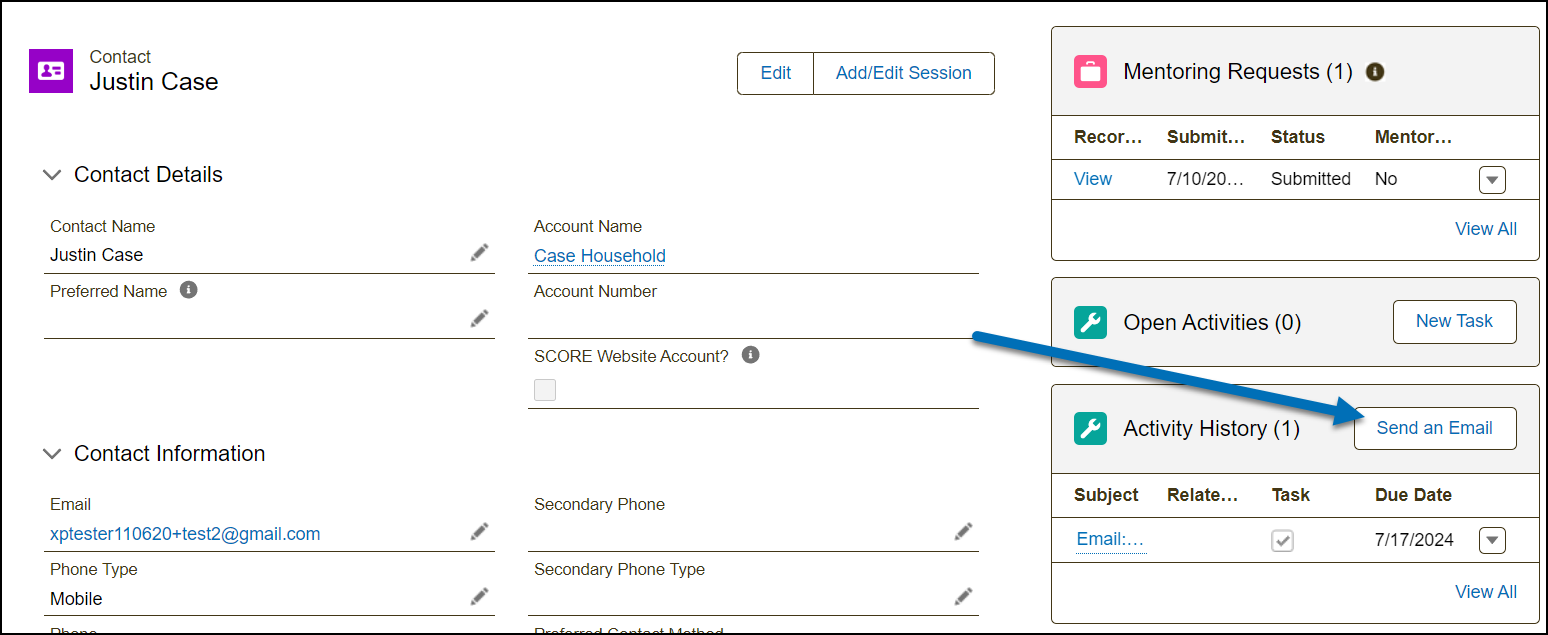
2) When looking at the client's contact record page, locate the "Activity History" in the related list and click the "Send an Email" button.
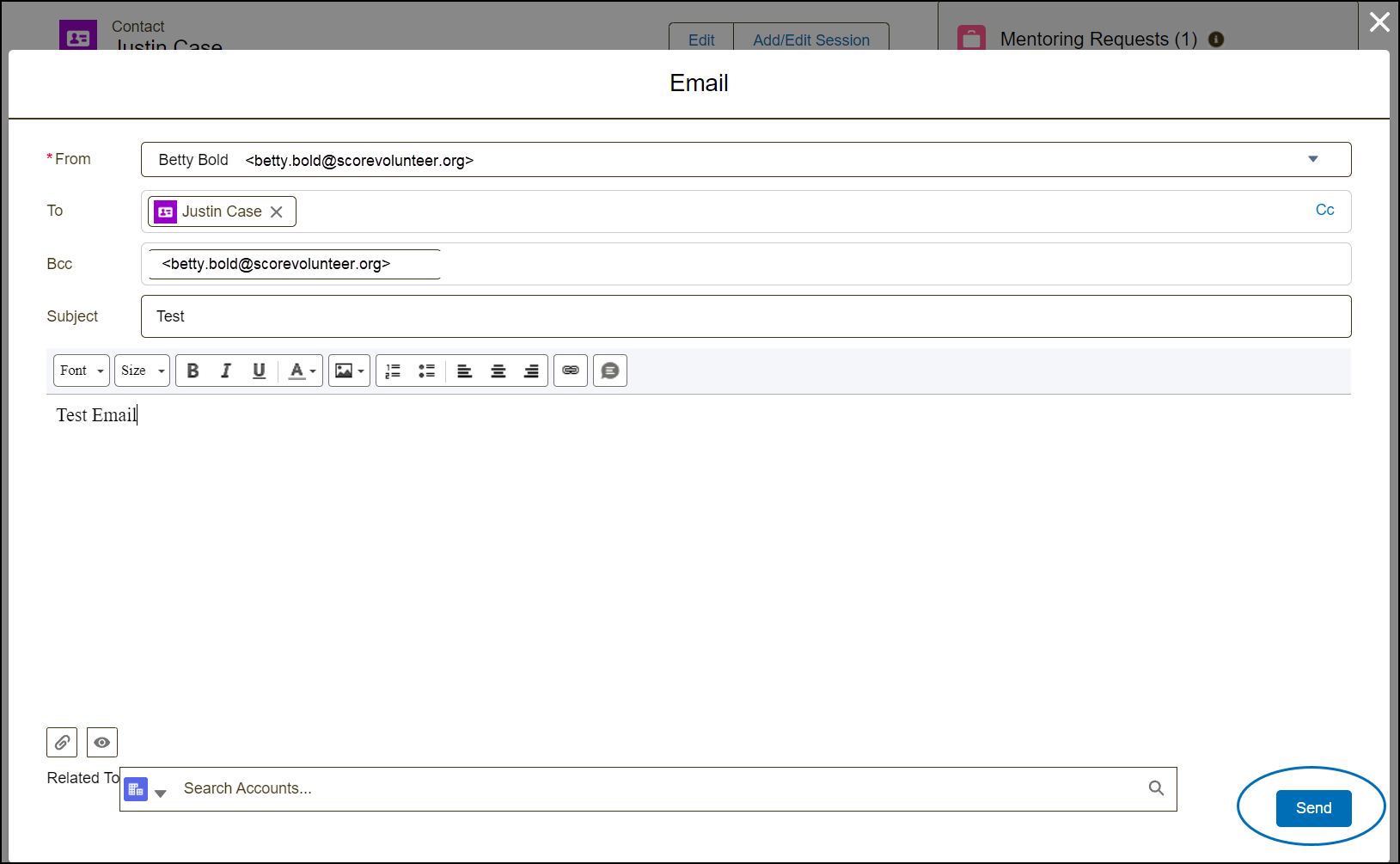
3) To send an email, type your message in the pop-up window and use the icons at the bottom left to add attachments or preview your email. When ready, click "Send".
Note: Your SVO (@scorevolunteer.org) email will automatically receive a copy of the message.
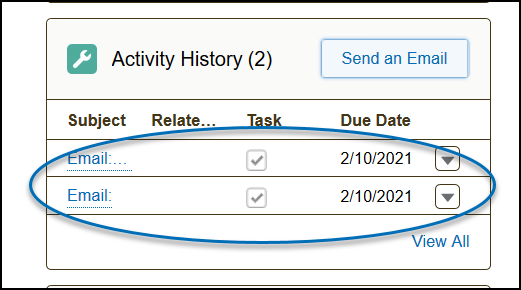
Email messages sent out from the contact record are also viewable and saved under the "Activity History" related list.
Email Client from the Mentoring Request Case
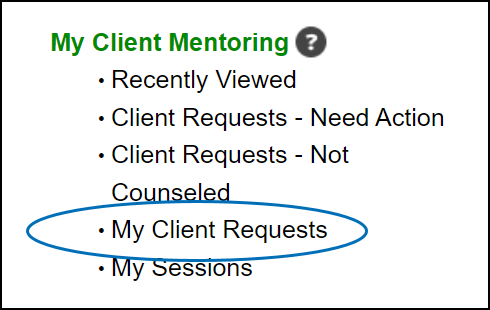
1) Select "My Client Requests" from the homepage.
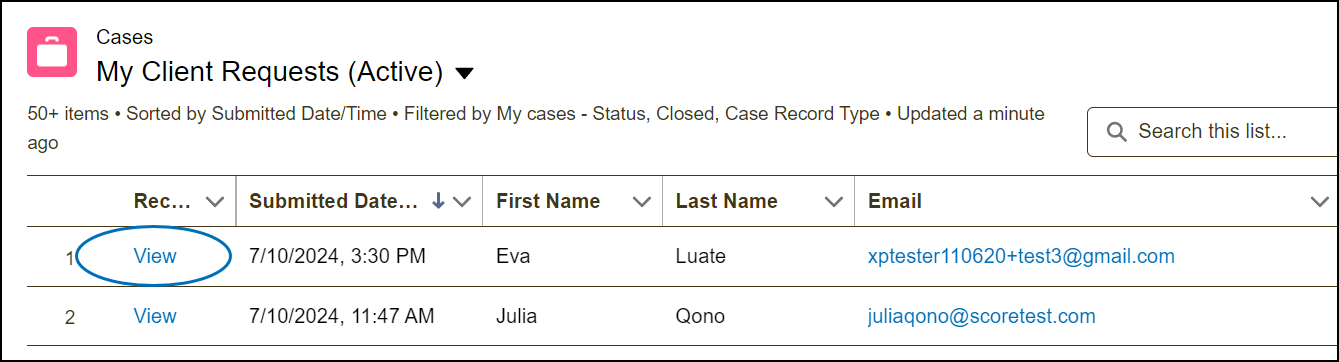
2) Click "View" to open the Mentoring Request Case page.
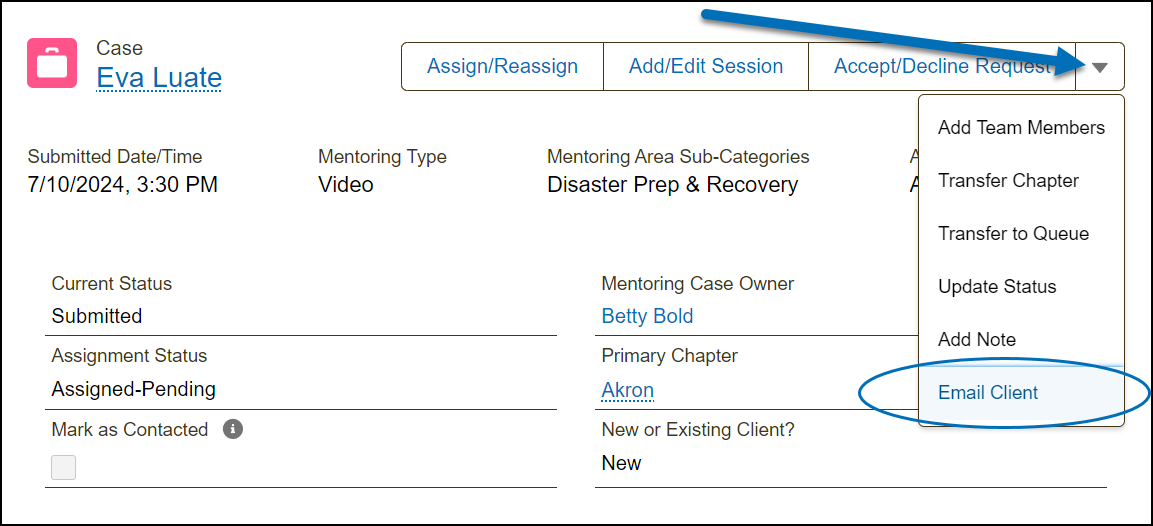
3) In the Mentoring Request Case, click the drop-down arrow  then select "Email Client" from the drop-down list.
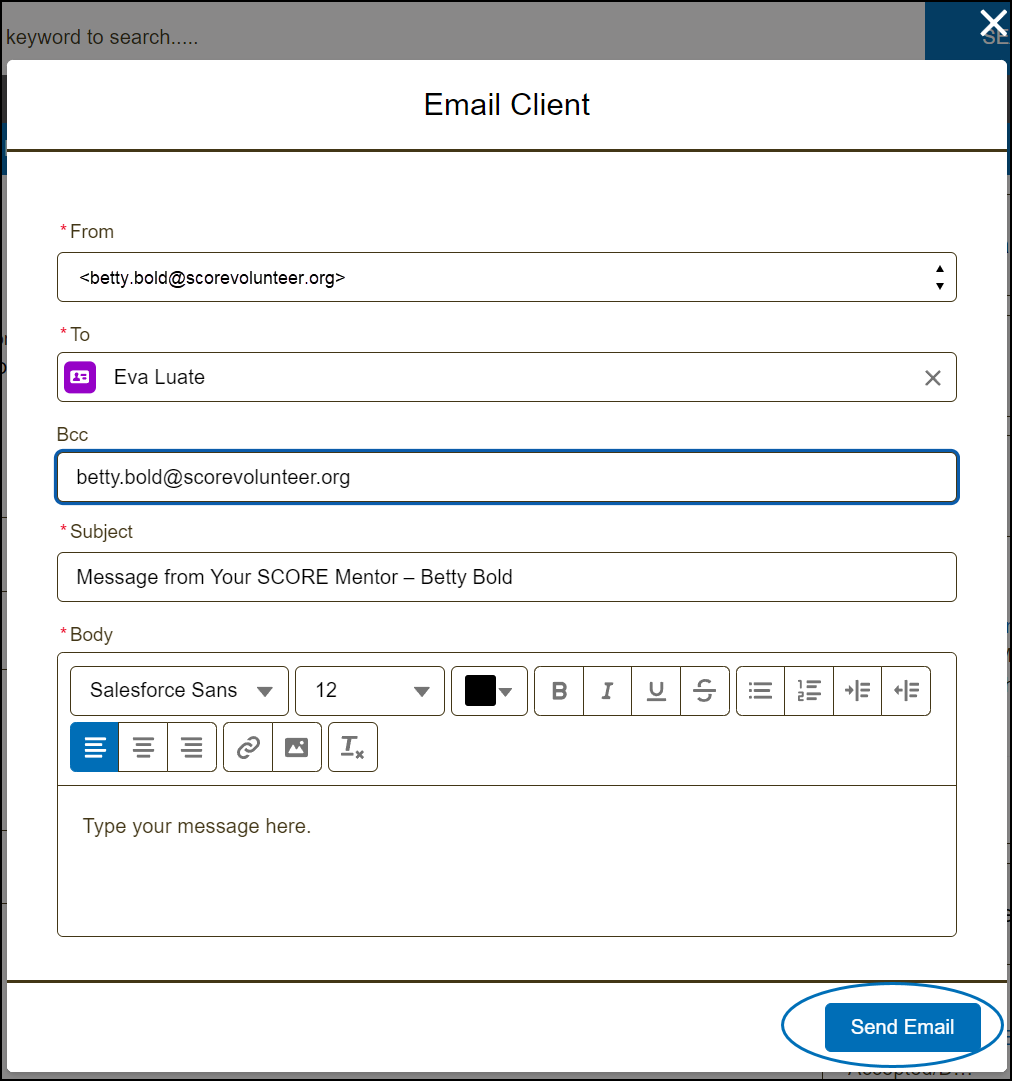
4) To receive a copy of your email, manually enter your SVO (@scorevolunteer.org) in the BCC field, then type your message in the body. When ready, click "Send Email". This function may not work well with attachments or images, as they might not display correctly to the recipient.
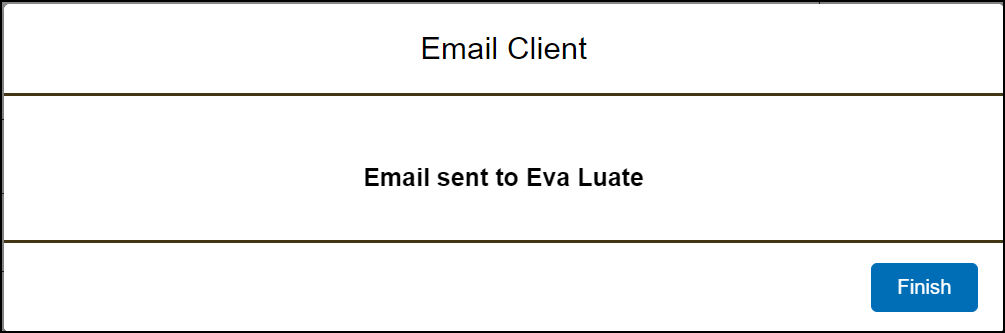
5) Click "Finish" to confirm the action.
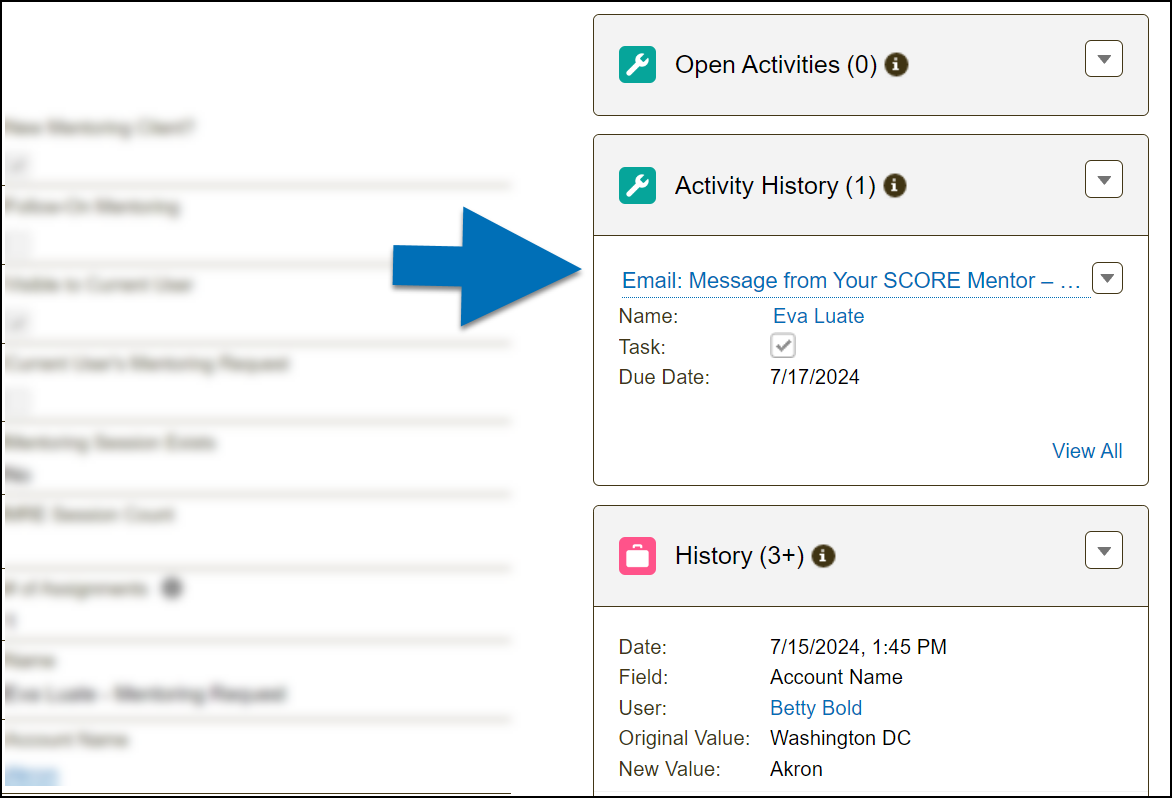
Email messages sent out from the Mentoring Request Case are also viewable and saved under the "Activity History" related list.