0
0
Audience: Mentors
Introduction
A co-mentor is someone that is mentoring the same client but is working in the same session as the lead mentor. Co-mentors can be added at the time the original session is entered or by editing an existing session. Co-mentors are only included in the session they are co-mentoring with the lead mentor. There can be up to 4 co-mentors in a session.
Co-mentors cannot add their own session notes but they can add a note to an existing session.
________________________________________________________________________________________________________
Adding a Note as a Co-Mentor
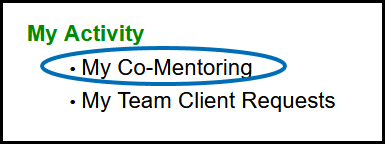
1) When you are added as a co-mentor to a mentoring request, you can access the request by clicking the My Co-Mentoring link from the Engage homepage.
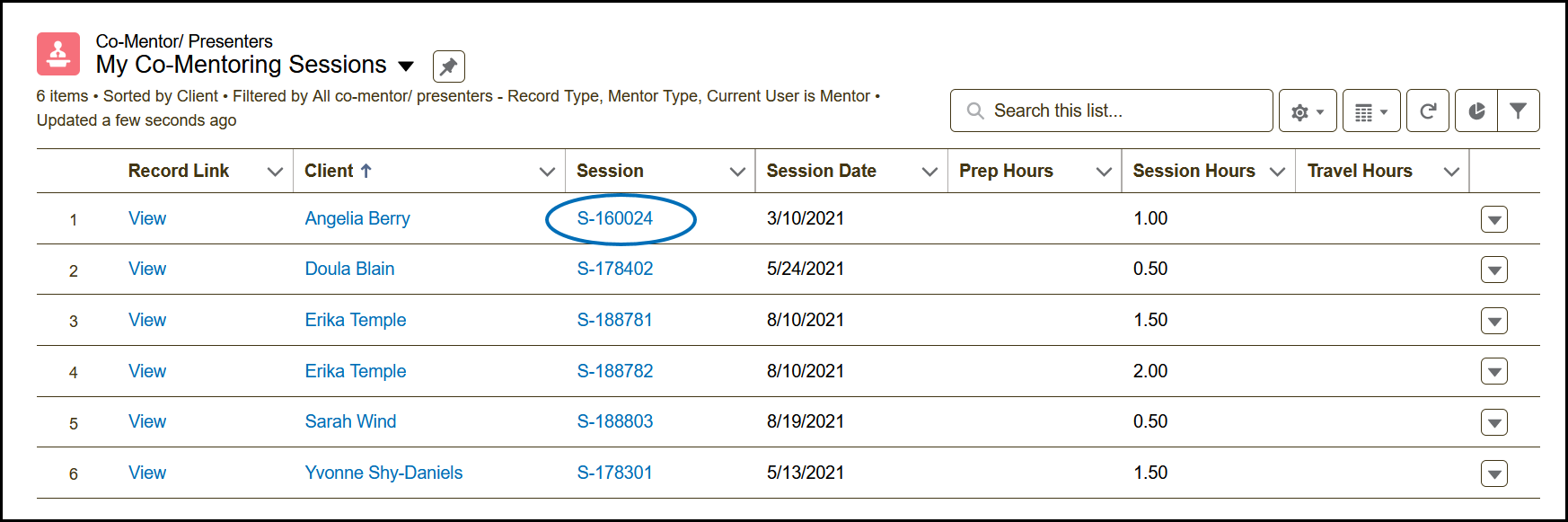
2) Click the Session Number of the session you would like to modify.
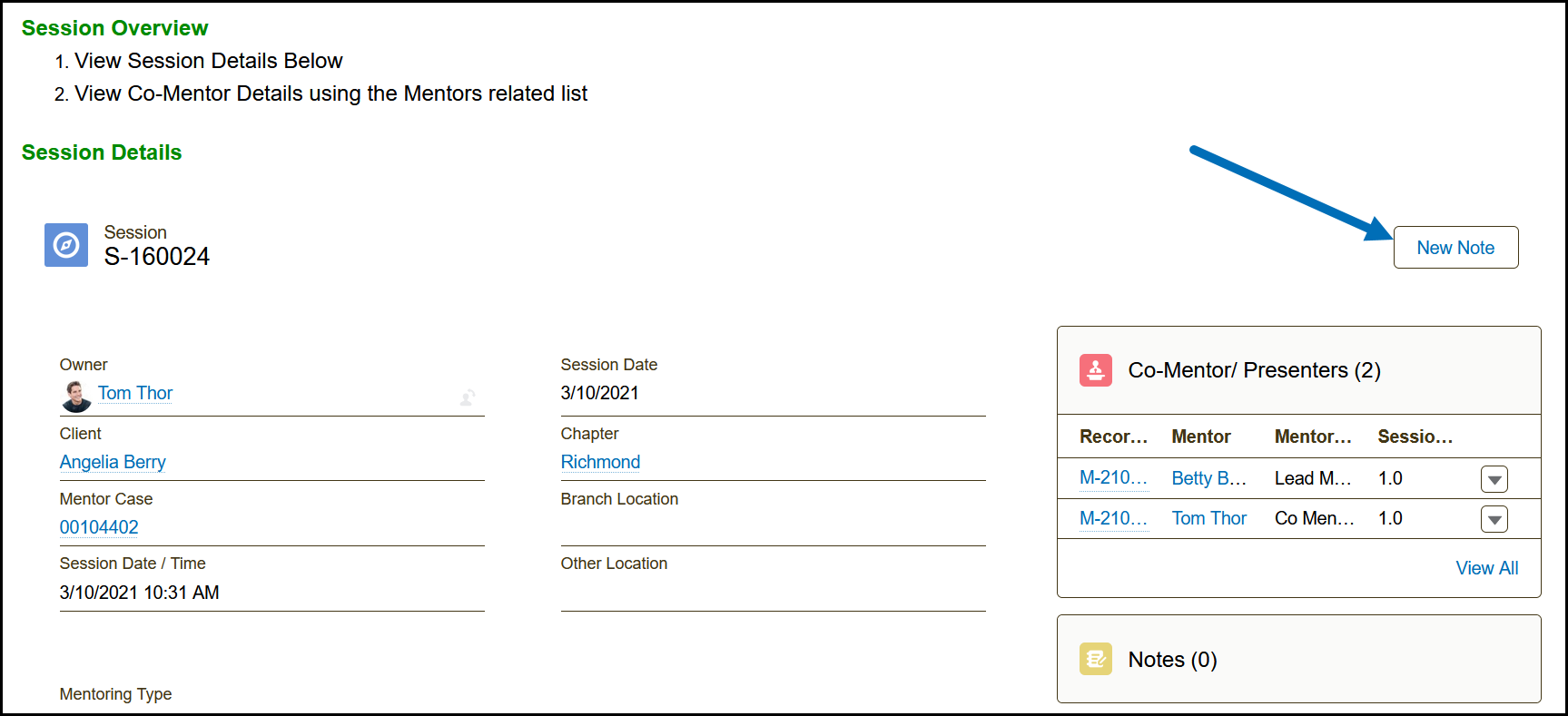
3) Click the New Note button on the Session Details page.
4) Enter your notes on this page.
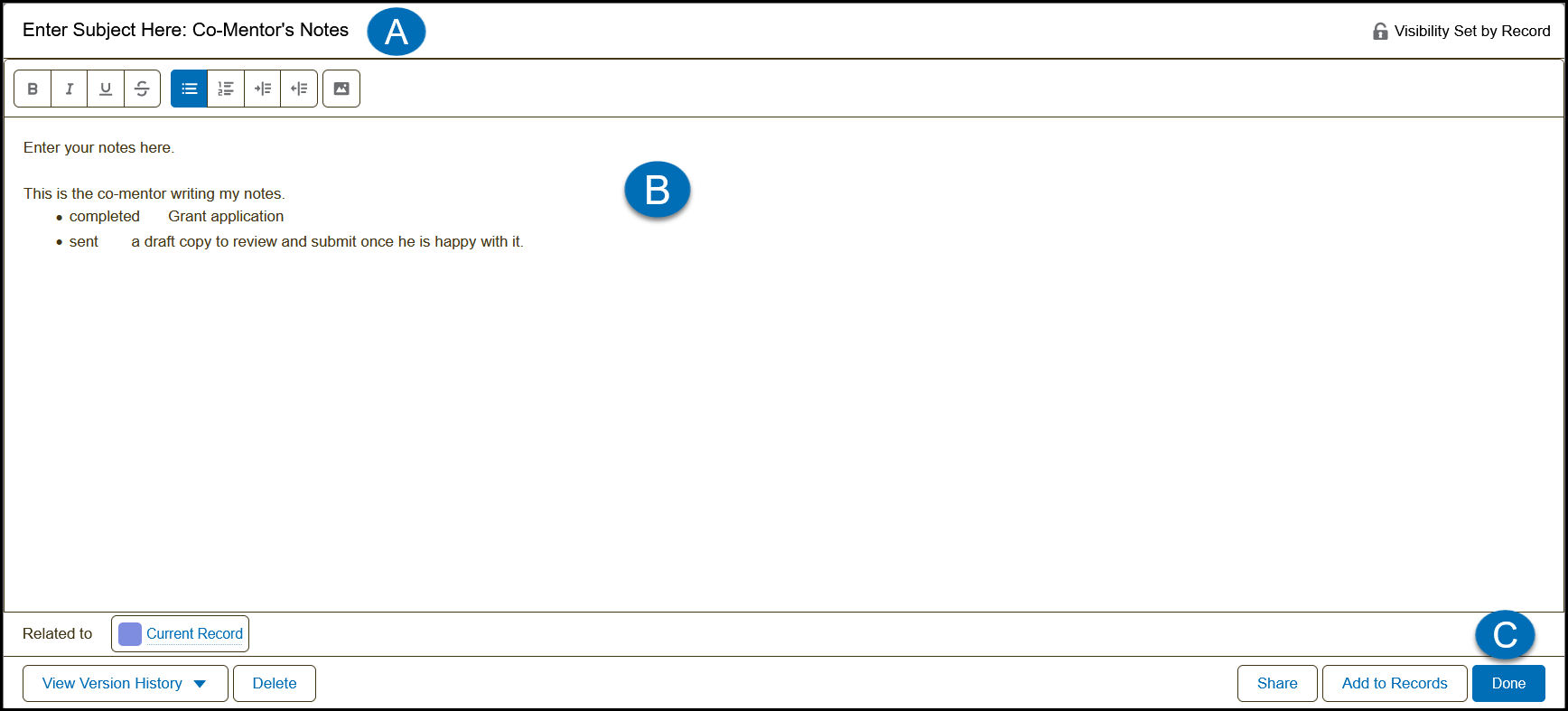
- A - Enter a Subject/Title on this line.
- B - Enter your notes here.
- C - Click Done to save the notes.
- Note: Do not edit anything else on this page.
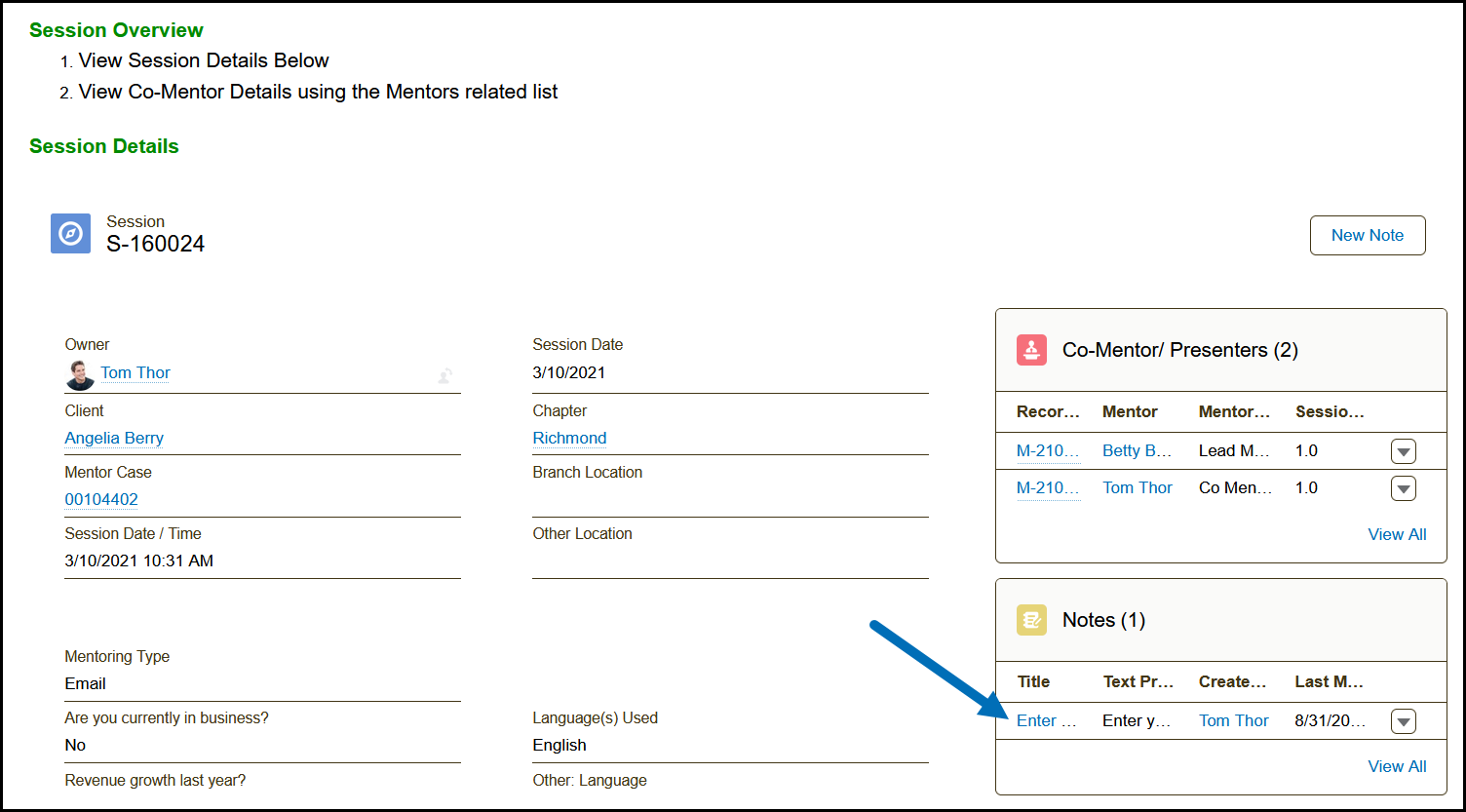
5) When done, your notes will be visible under the Notes section.