



 0
0
This guide is designed to help you quickly find certified Coaches, Interviewers, and Co-Mentors within your region in Engage.
Included in this guide:
Access Lists for Coaches, Interviewers or Co-Mentors
Here is a breakdown of the steps featured in the video.
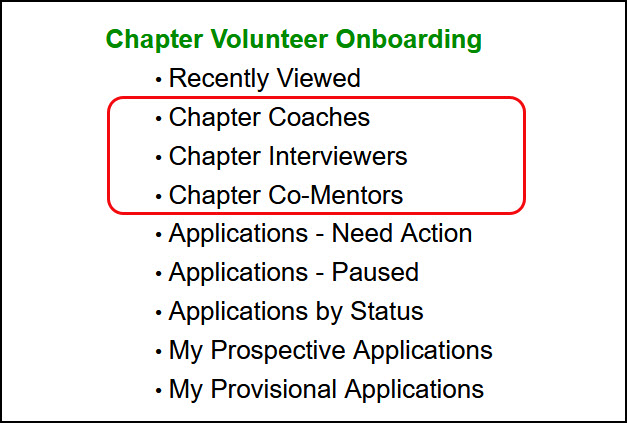
- From the Engage homepage, locate Chapter Coaches, Chapter Interviewers, or Chapter Co-Mentors and select one to open the list.
- The list should show all coaches/interviewers/co-mentors for provisionals affiliated with your RVIC affiliation.
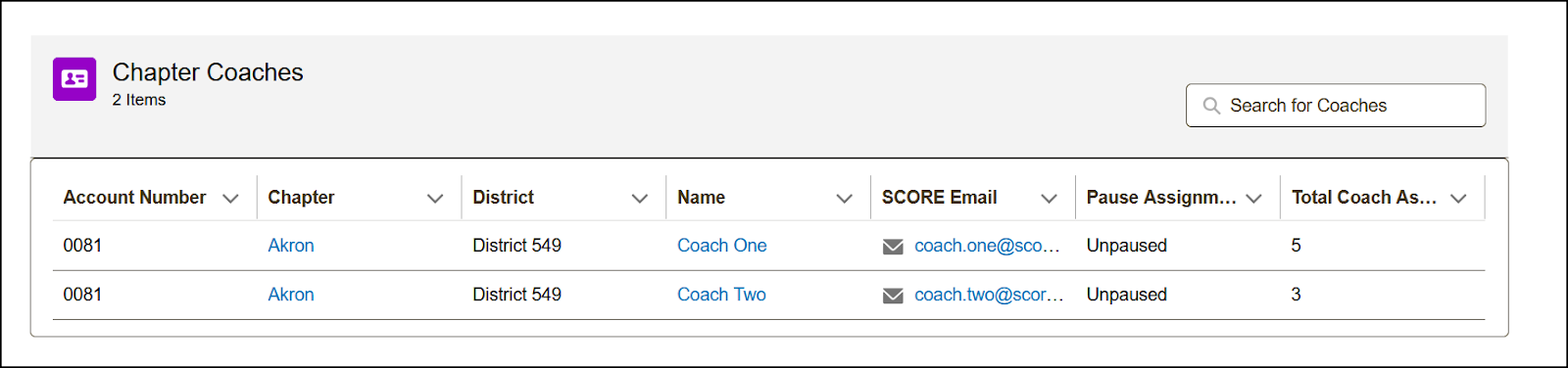
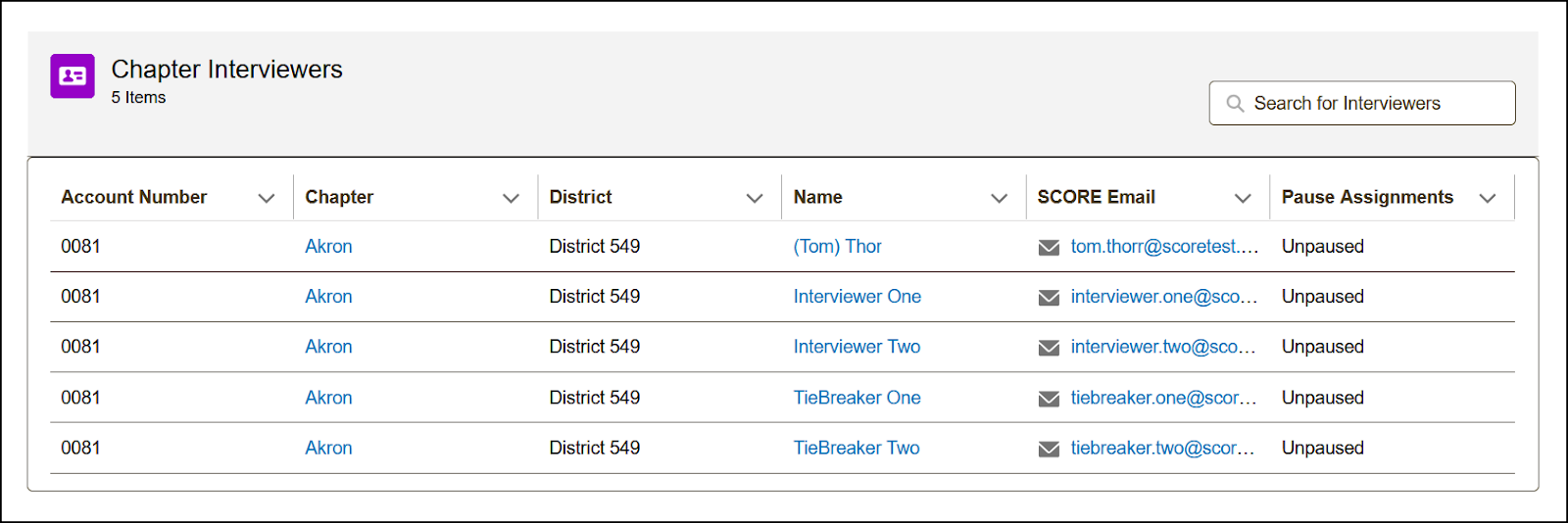
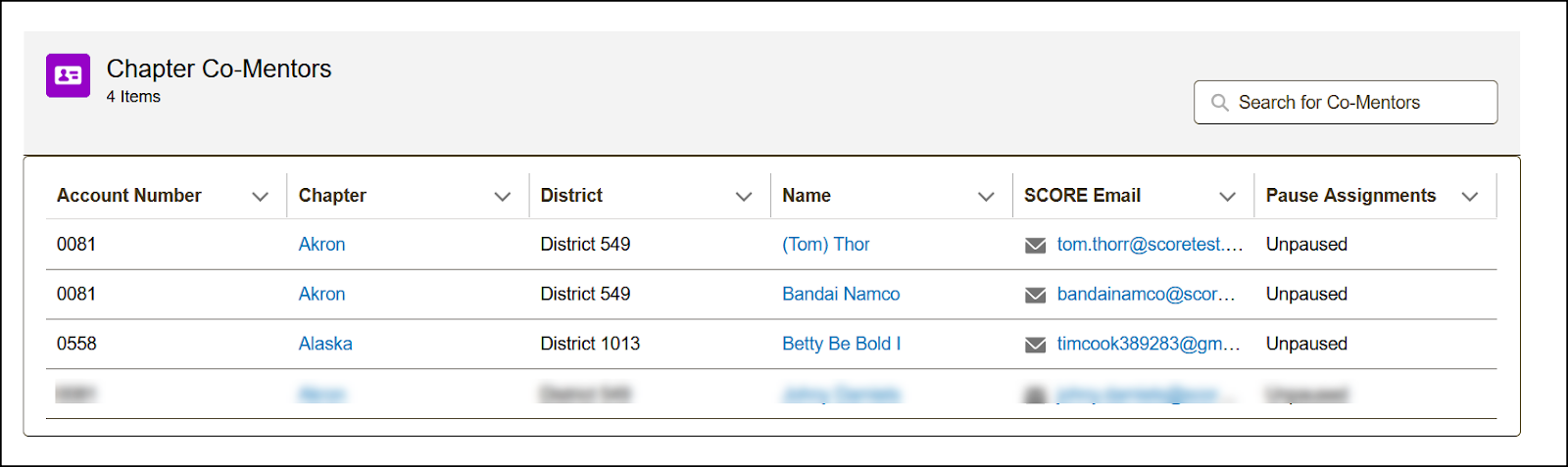
- Once the list is open, you’ll see key details such as the account number (chapter number), chapter (shows the affiliation (account name), contact name, SCORE email, pause mentoring status, and for the Chapter Coaches list, it will show the total number of coach assignments.
- List of Chapter Coaches
- List of Chapter Interviewers
- List of Chapter Co-Mentors
- List of Chapter Coaches
Understanding the List Columns
-
Account Number – The primary chapter number the Volunteer is associated with.
-
Chapter – This will always show the primary chapter even if the volunteer is affiliated with more than one. This is a clickable link to the volunteer’s primary chapter page.
-
District – Displays the district number only (not a link).
-
Name – The volunteer’s name; click to go directly to their Engage profile.
SCORE Email – Click to open your default email client and email the coach. -
Pause Assignments – Indicates whether the mentor has paused their Mentor Assignments or not, these will show Paused or Unpaused.
-
Total Coach Assignments - This column only appears on the Chapter Coach list and shows the total number of volunteers that a person is currently coaching who are in "Provisional" status. Once a volunteer is no longer provisional, the number goes down automatically.
Verify Role from Profile Page
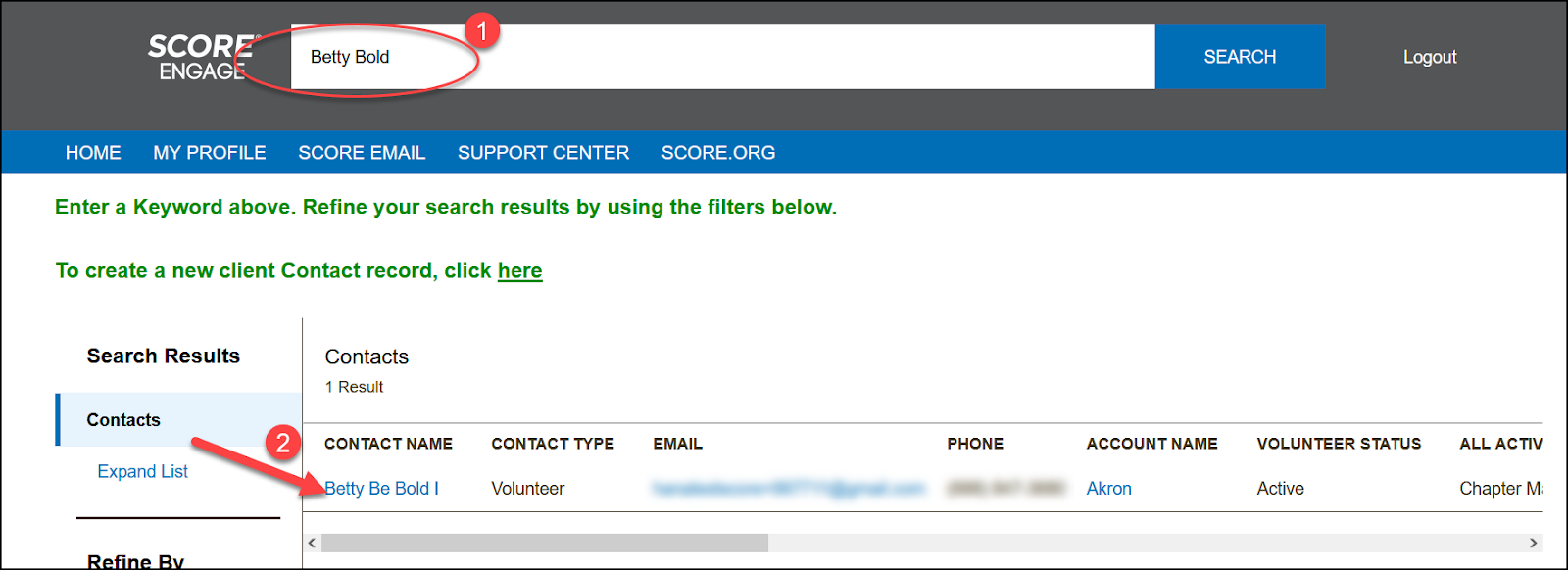
- Use the Global Search at the top of the Engage homepage to find the volunteer by name or email.
- In the search results, click the volunteer’s name under the Contact Name column to open their profile page.
- On the profile, check for a check mark next to any of the following roles:
- Certified Coach
- Certified Interviewer
- Certified Co-Mentor
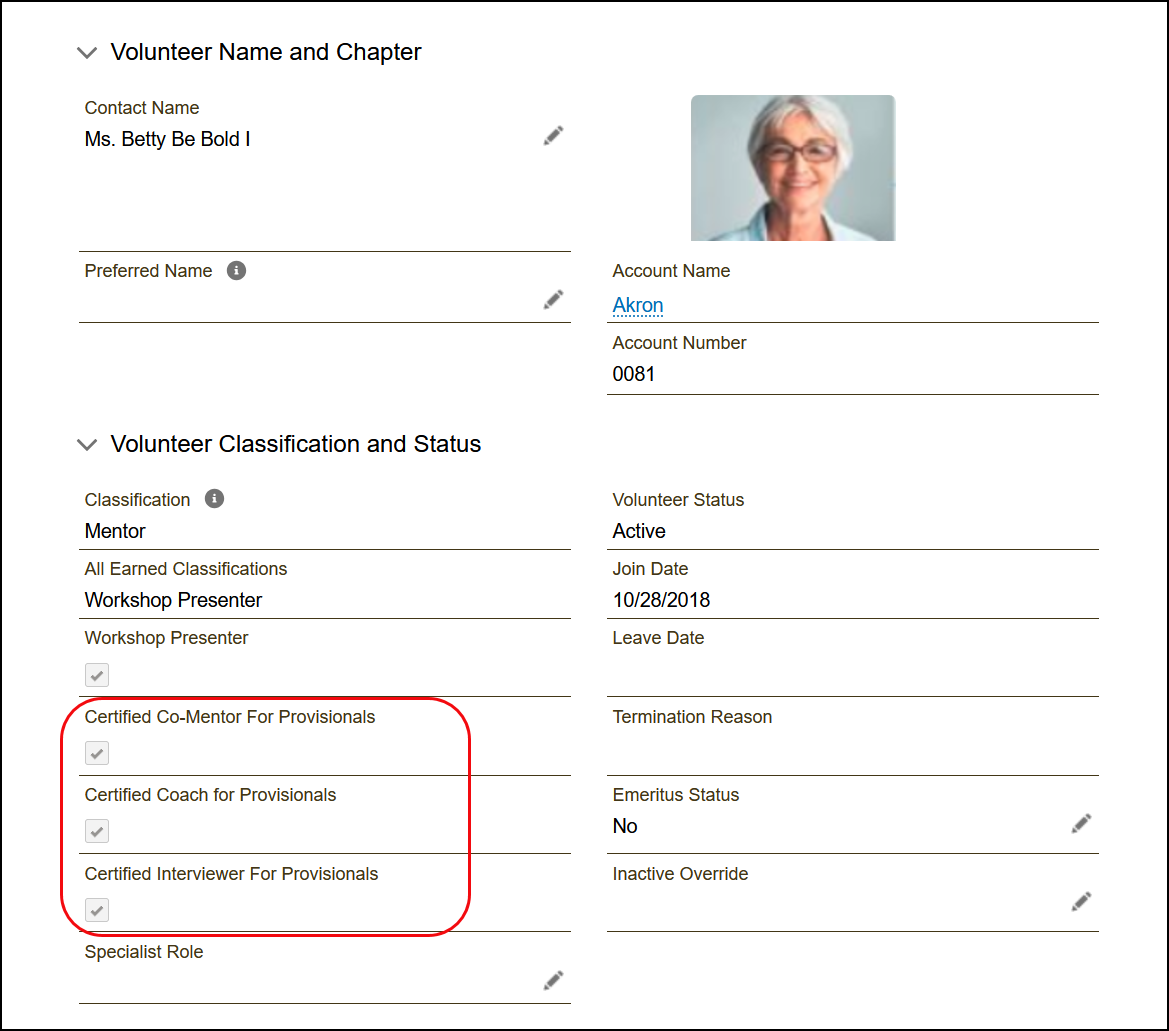
➤ TIP: A check mark indicates that the volunteer has completed
the required training for that specific role.
