0
0
This guide outlines how co-mentors support provisional mentors in Engage, including system access and steps for adding provisionals to mentoring sessions.
Becoming a Co-Mentor for Provisionals
-
From the Engage homepage, click Access Online Learning.
-
On the learning platform, click All Courses, then go to page 2 to view role-specific orientation courses.
-
Select the orientation for your role (e.g., Interviewer, Coach, Co-Mentor).
-
Click Register if prompted, then click Start to begin the course.
-
Click the module link to launch the training in a new tab.
-
After completing the training, close the tab. Your progress will show 100%.
-
(Optional) Check your Engage profile; a checked box shows you've completed the role orientation training.
Reviewing a Provisional’s Profile
- Log into Engage.
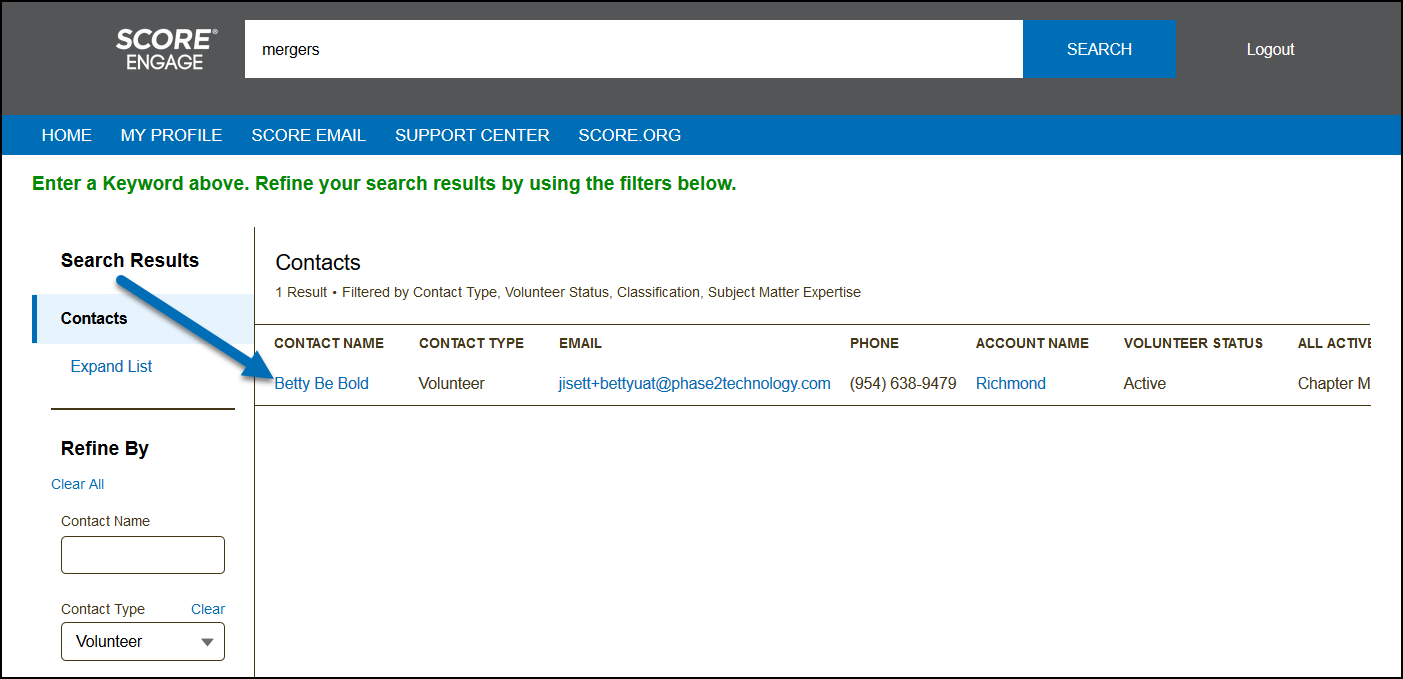
- Search the volunteer by email or first and last names in the global search.

- When found, click the contact name to open the volunteer’s profile.
Adding Provisionals as Co-Mentors
You can add a provisional mentor as a co-mentor when adding or editing a mentoring session. After entering session details, click Next to reach the page for adding a co-mentor. The 2-part guide below covers both steps.
Part 1: Add a Mentoring Session
- From the homepage, click My Client Requests.
- Find the client and click View to open their mentoring request.
- Click Add/Edit Session.
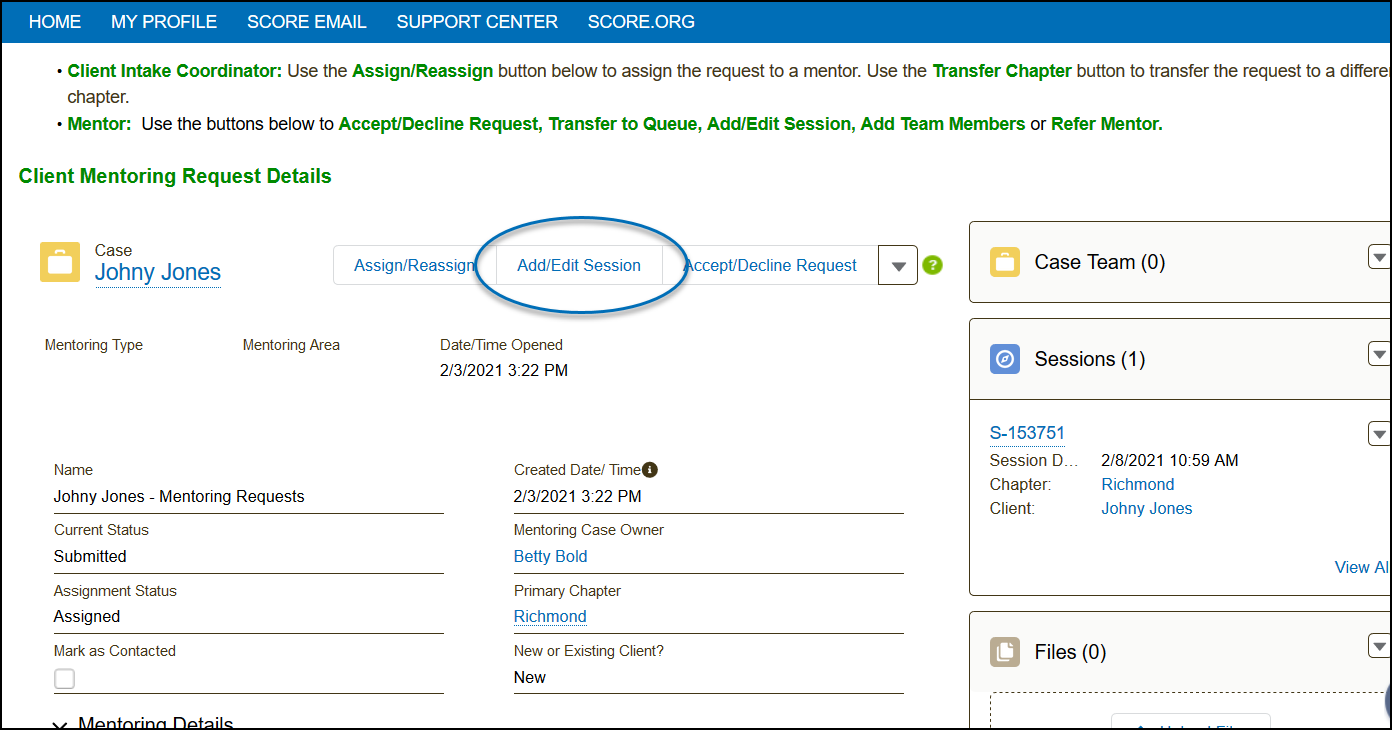
- Enter the session details.
- For the full mentoring session details, please check out this guide: Add or Edit a Mentoring Session
- For the full mentoring session details, please check out this guide: Add or Edit a Mentoring Session
Part 2: Add a Co-Mentor
- Click Next until you reach the Add Co-Mentor and Edit Hours page.
- Click Add Co-Mentor.
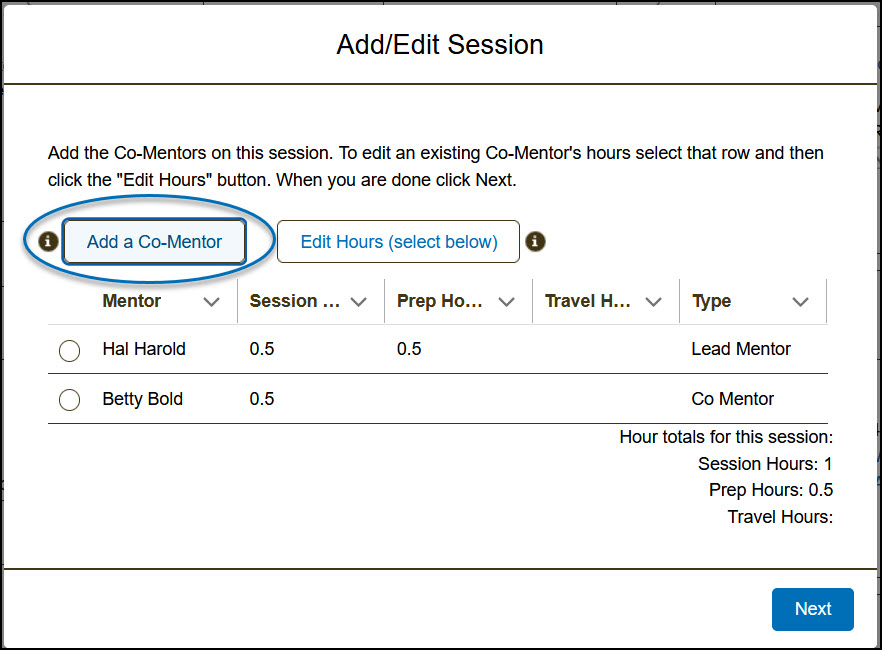
- Search the provisional by name or select from the list.
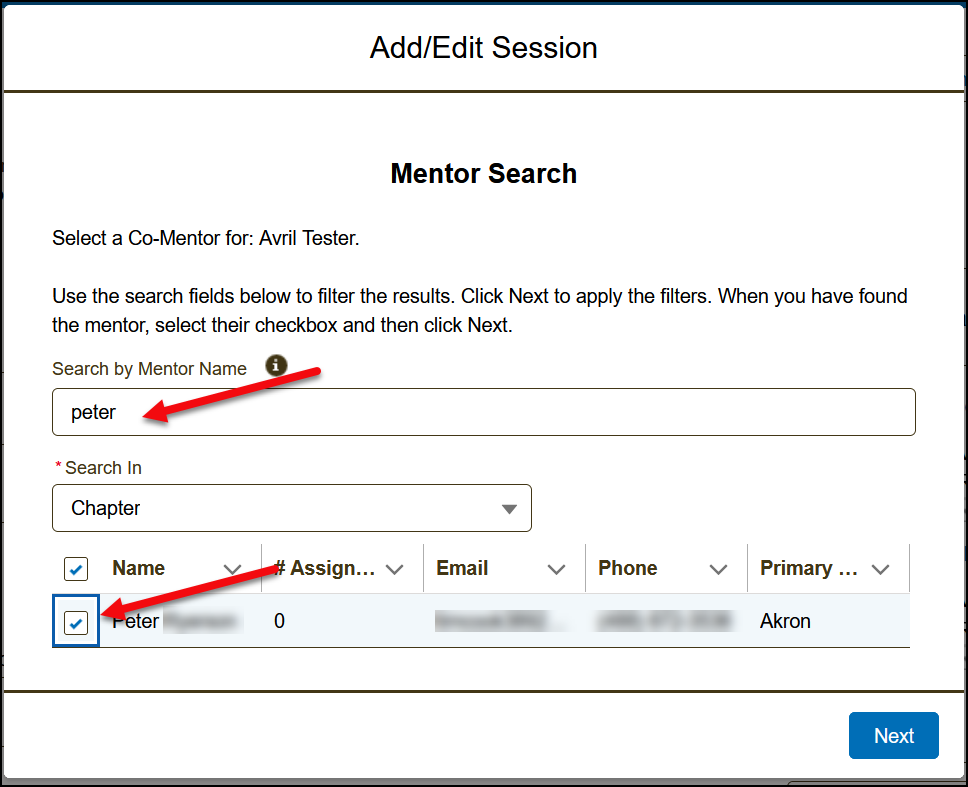
- After the confirmation window that shows the co-mentor has been selected appears, click Next.
- Enter the co-mentor’s session hours and click Next to save.
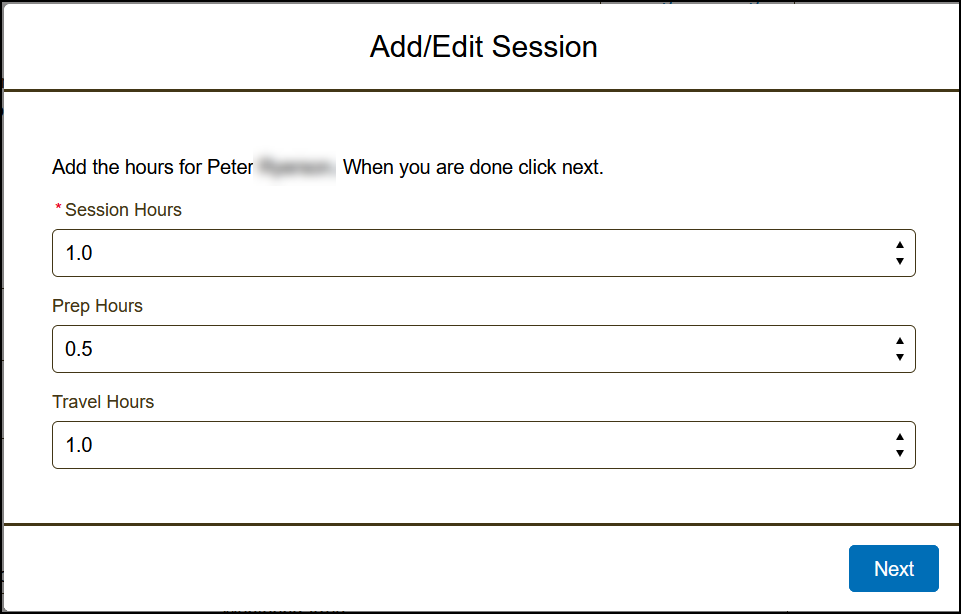
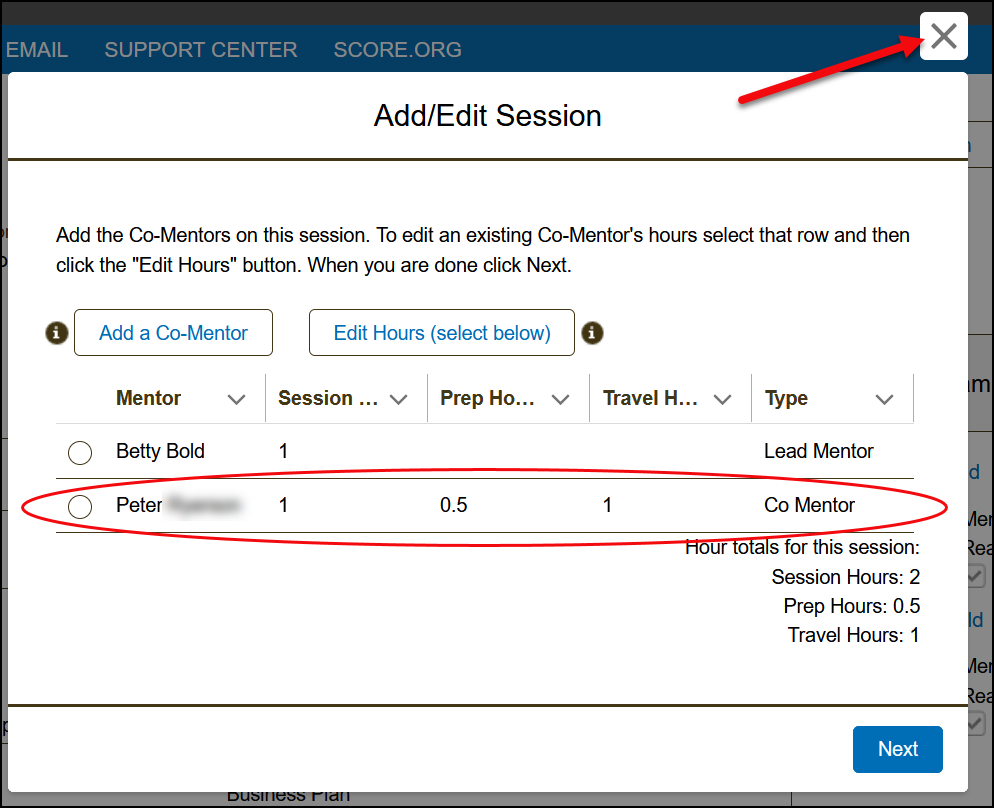
- You’ll be returned to the previous window with the co-mentor’s hours added. Exit this window by clicking the X at the top-right.