



 2
2
As a Coach, you guide Provisional Volunteers through onboarding. This guide covers the key technical steps in Engage: how to know when you're assigned to a volunteer, how to access their application, and how to document progress through notes and comments.
- Becoming a Coach - find out how one becomes a Coach
- Assignment Notification – how you’re alerted to new applications
- Accessing Assigned Applications – where to find and view records
- Adding Coach Notes – record updates visible to you and the RVIC
- Recording – view a short recording on how coach notes work
- Adding Coach Comments – share visible updates with the applicant
Becoming a Coach
-
From the Engage homepage, click Access Online Learning.
-
On the learning platform, click All Courses, then go to page 2 to view role-specific orientation courses.
-
Select the orientation for your role (e.g., Interviewer, Coach, Co-Mentor).
-
Click Register if prompted, then click Start to begin the course.
-
Click the module link to launch the training in a new tab.
-
After completing the training, close the tab. Your progress will show 100%.
-
(Optional) Check your Engage profile; a checked box shows you've completed the role orientation training.
Assignment Notification
When a new volunteer is assigned to you as a Coach, you will receive an email from the Regional Volunteer Intake Coordinator (RVIC), so make sure to check your @scorevolunteer.org email account frequently.
➤ TIP: Check your inbox regularly to avoid delays in the onboarding process.
Accessing Assigned Applications
- Log in to Engage.
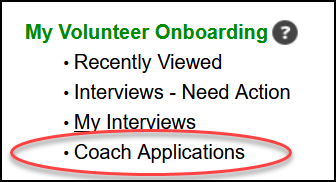
- From the homepage, click Coach Applications.
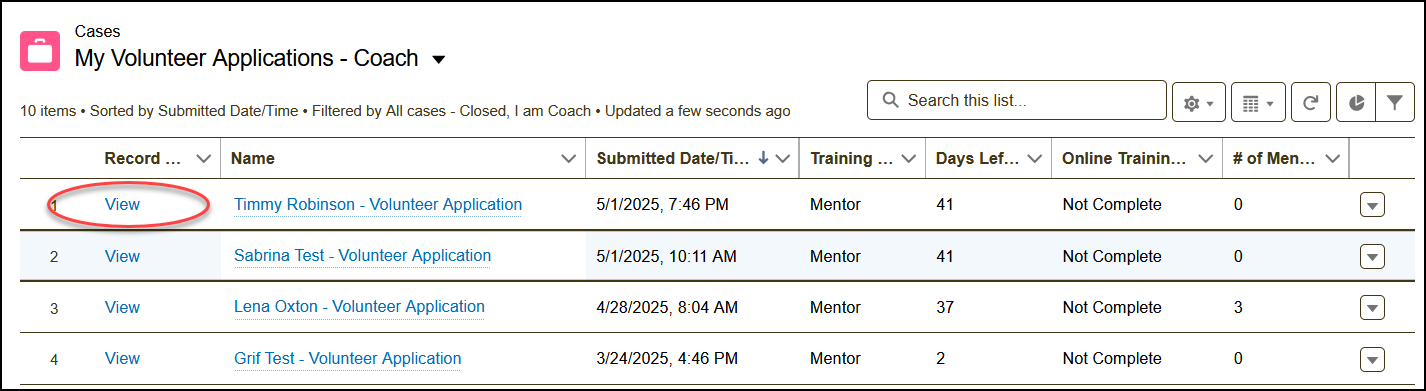
- Locate the application you want to manage and click View.
Adding Coach Notes
➤ TIP: Coach Notes are only visible to the assigned Coach and RVICs. Use this space to document internal updates, concerns, or coaching progress that may not need to be shared with the applicant.
- From the Engage homepage, select Coach Applications.
- Find the application you want to work on and click View.
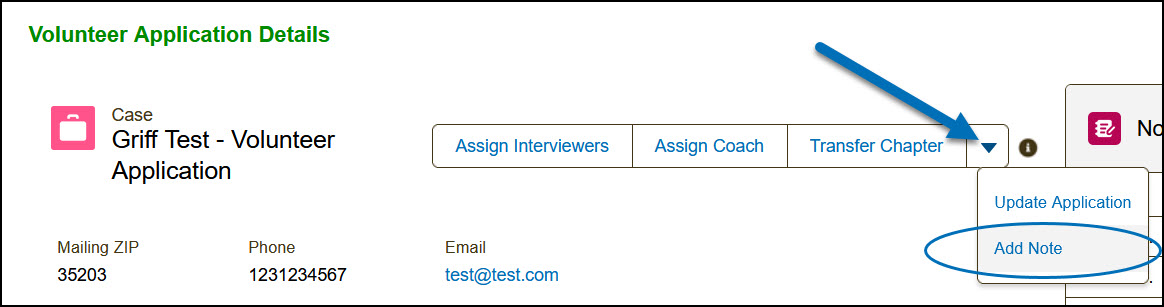
- Click the drop-down arrow at the top right of the application page, then select Add Note.
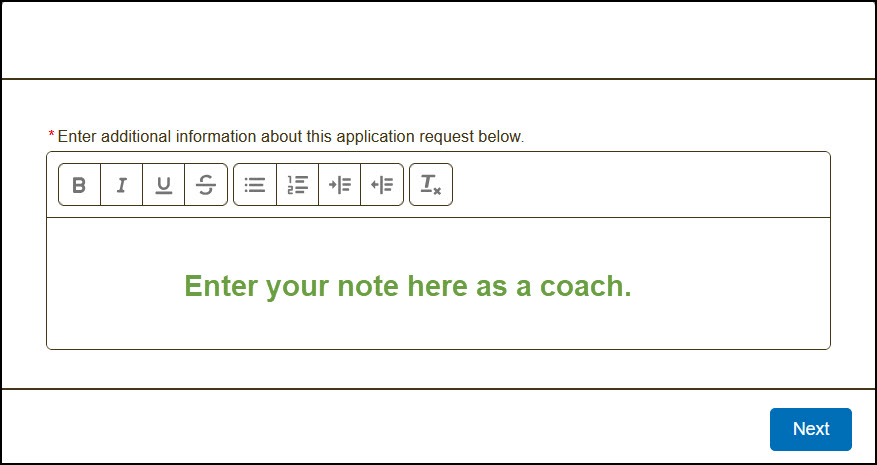
- Enter your note in the pop-up window. Click Next to save it.
What Happens Next
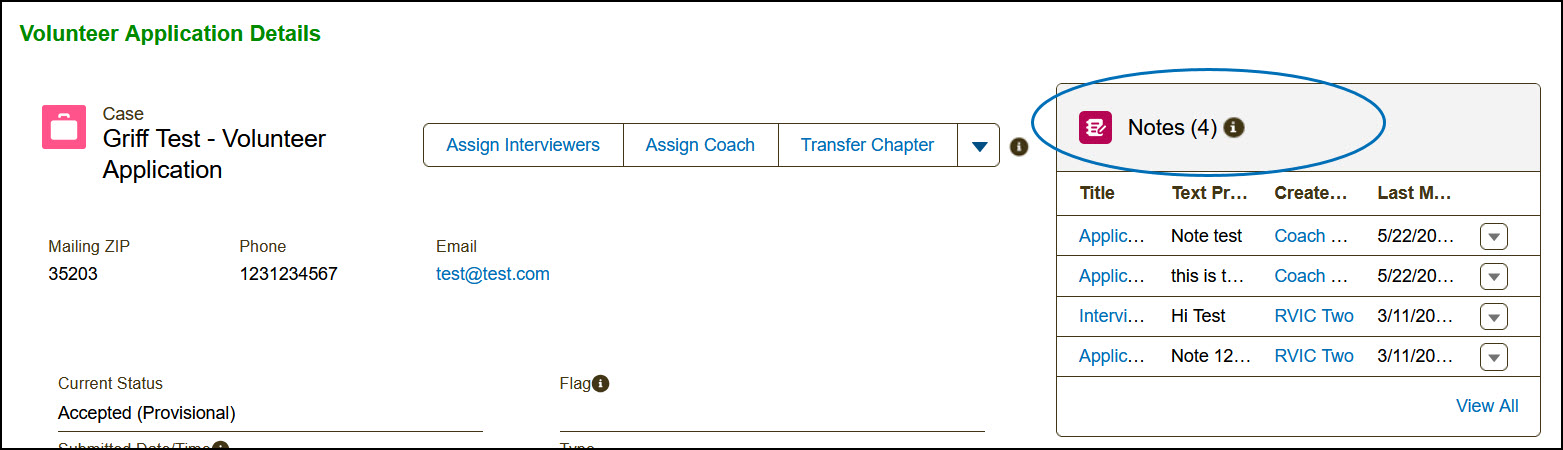
- The note will appear in the Notes section on the right side of the application page.
Deleting a Note
➤ TIP: While Engage allows you to delete a Coach Note, avoid doing so unless absolutely necessary. Instead, add a new note to provide updates or corrections. This keeps a clear record of the volunteer’s onboarding history and ensures transparency.
- From the Engage homepage, go to Coach Applications.
- Locate the application you want to manage and click View.
- On the application record, locate the Notes section on the right side.
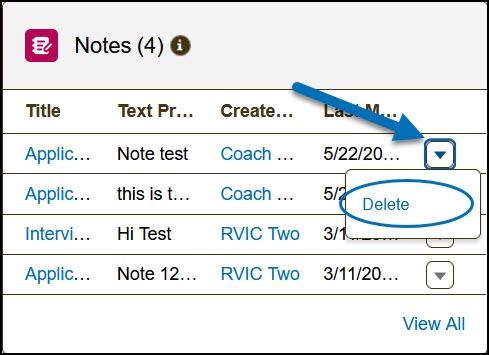
- Find the note you want to delete. Click the drop-down arrow next to it and select Delete.
-
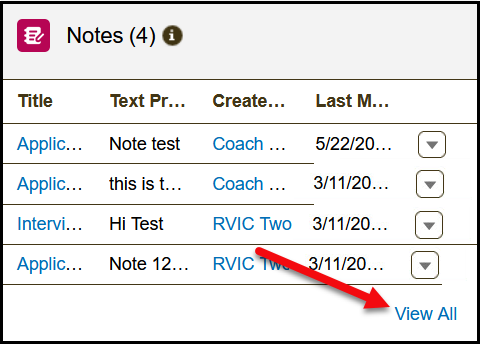
➤ TIP: If the note isn’t visible, click View All to see the complete list. Find the note, click the drop-down arrow inline with it, and choose Delete.
-
- Confirm deletion when prompted.
Recording
Duration: 2:30 minutes
Adding Coach Comments
➤ TIP: Coach Comments are visible to the applicant. This visibility encourages thoughtful and constructive input.
- From the Engage homepage, go to Coach Applications.
- Locate the application you want to manage and click View.
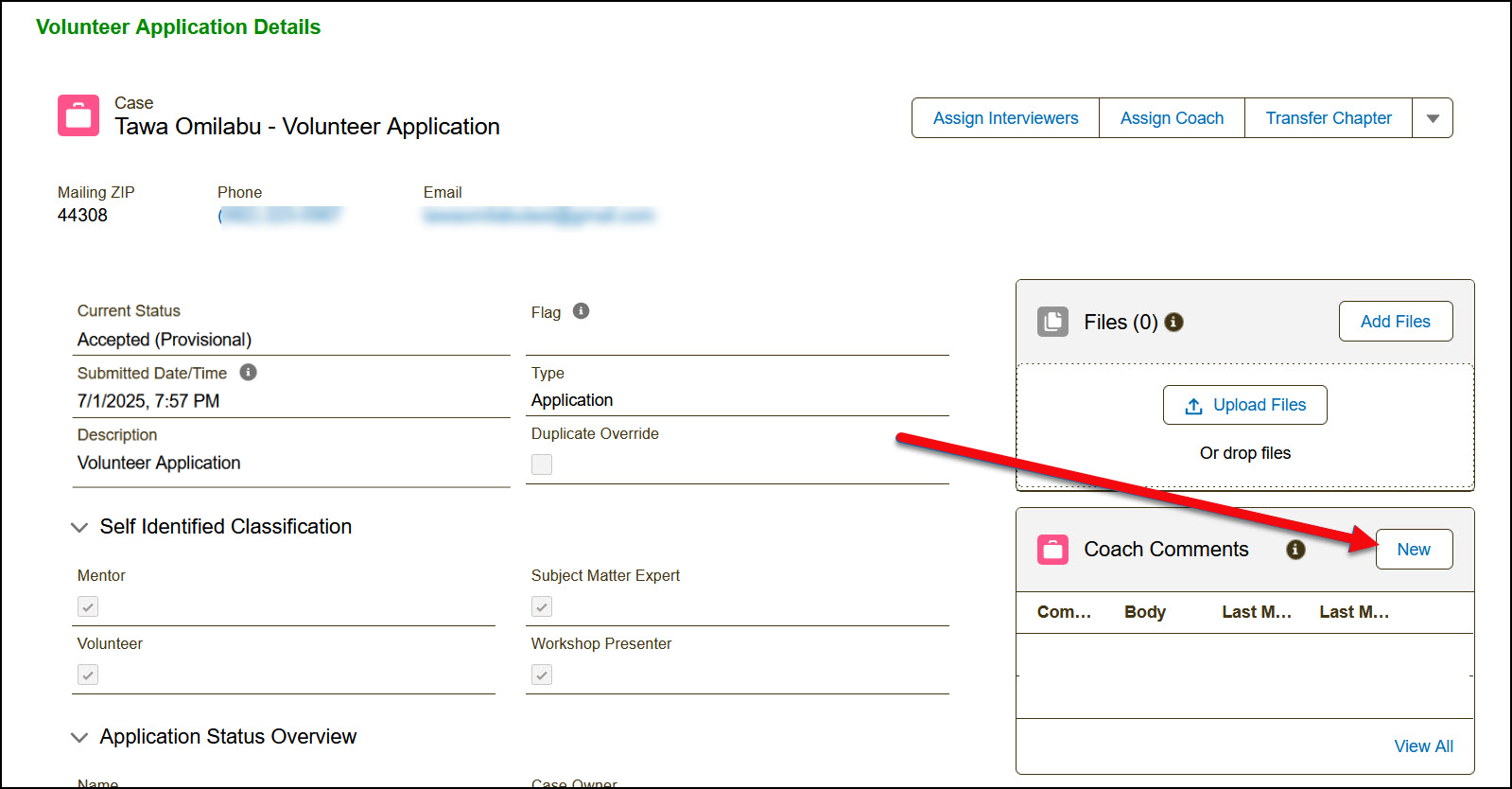
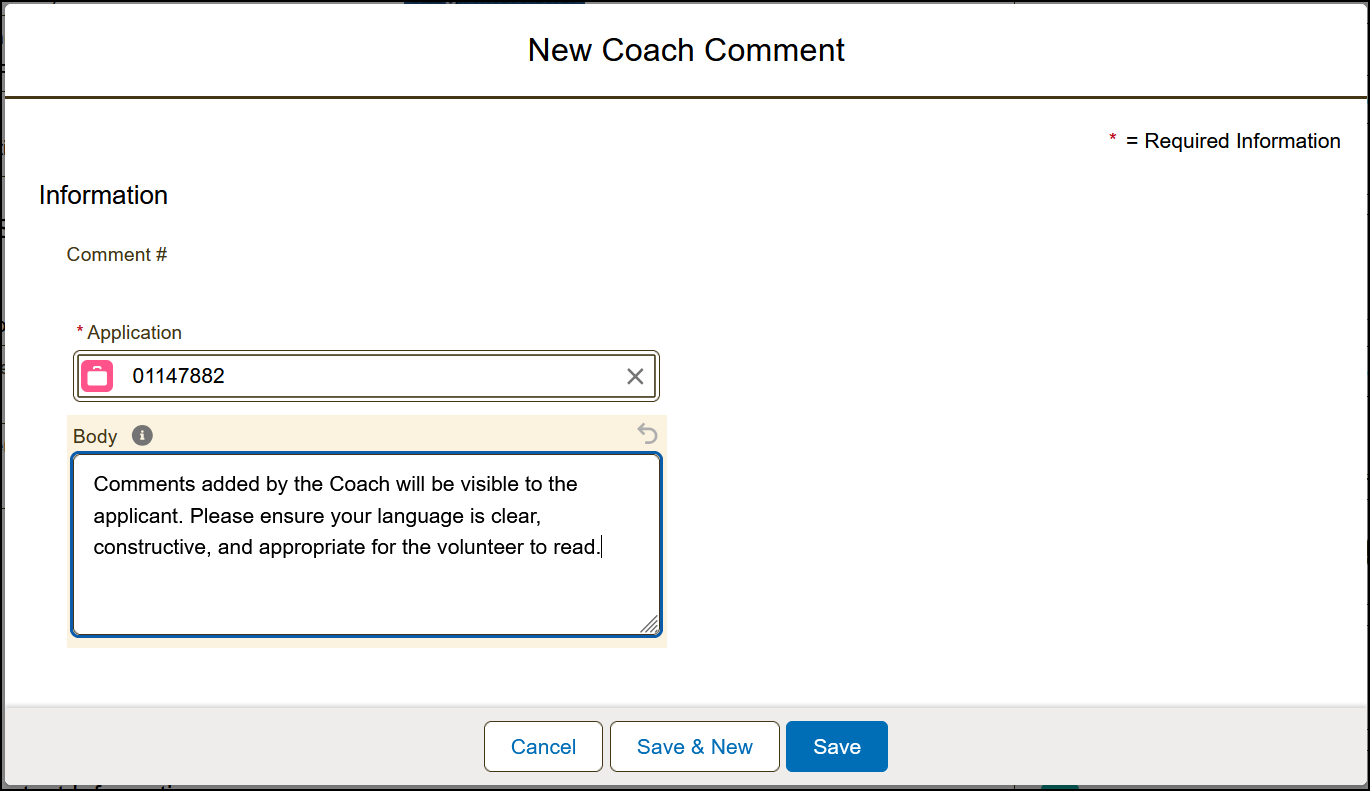
- In the application page, locate Coach Comments and click New.
- Enter your comment in the Body field.
- Click Save.
Related Resource
View the full list of Engage system notifications related to the Volunteer Journey Notifications. (SVO login required)

